Generator guide
How to Use Numberblocks Generator
Numberblocks Generator is the page to open when you want to make a number character from scratch. Enter a whole number from 1 to 10,000, choose a Look, adjust the face and colors, then transform the same blocks into a new arrangement. You can keep the result in your browser, share a remix link, or take it to Showtime for a PNG.
My quick take
Use the tabs as a simple route: Create the number, choose a Look, Customize the details, Transform the shape, then finish in Showtime. You do not need to open every control to get a good first result.
Guide review
Written with a stated source and review method
- Written and reviewed by
- Numberblocks Generator site team
- Last reviewed
- September 19, 2026
Prepared from the site-controlled 3D builder, its documented controls, and the product preview below. The tool is maintained on this site rather than embedded from a third-party project.
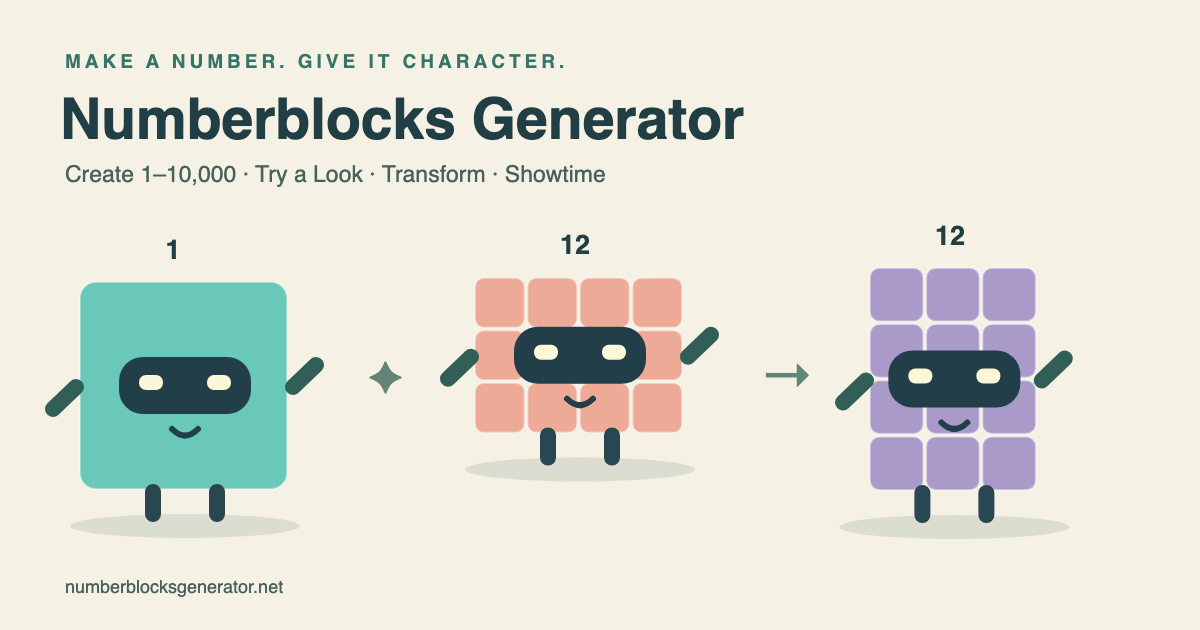
Start with a number
Open the generator and stay on Create. Enter a whole number from 1 to 10,000, or use one of the popular number shortcuts below the studio. Generate replaces the current character with the number you choose; it does not require an account or a project download.
For a first try, use 5, 10, 12, or 24. These are small enough to see every block, while 12 and 24 also make the later shape experiment easy to understand.
- Use 1–10 for a quick first character.
- Try 12 or 24 when you want to compare factor shapes.
- Use 1,000 or 10,000 to see how the lightweight large-number preview behaves.
Choose a Look before fine detail
Looks are starter appearances. Pick one first if you want a ready-made face and palette, then move to Customize when you want to edit the parts yourself. The generator keeps the number separate from the appearance, so changing a face does not change the value.
This is a good place to decide whether the character should feel simple, playful, bold, or unusual. You can always return to Looks without rebuilding the number.
Customize the face, colors, and accessories
Customize covers the main visual choices: colors, material, face, accessories, and scene. Mix eyes, pupils, eyebrows, mouths, and cheek details, then add hats, glasses, or other accessories.
Fine Tune is for the last millimeter. Select a part and move, rotate, or resize it; on a phone, use the compact controls and touch-friendly stage. Advanced tools also include individual block painting, so one character can have a deliberately mixed palette.
- Start with one face change so the result is easy to compare.
- Use Fine Tune after choosing the final part, not before.
- Use Block Painter for an individual block, row, column, or the whole character.
Transform the same number
Transform Lab changes the arrangement without changing the number of blocks. Compact, tall, wide, rectangle, and steps layouts are useful for seeing the same value from different angles; custom columns give you another way to test an arrangement.
For 24, compare 3 × 8 with 4 × 6. Both rectangles contain 24 blocks, but the proportions feel different on screen. The animated morph makes the relationship visible instead of turning it into a list of factors.
- Use Rectangle for factor-pair comparisons.
- Use Tall or Wide to emphasize orientation.
- Try Steps when you want a more playful sequence.
Finish in Showtime
Showtime turns the studio from an editor into a small stage. Choose a background, try an action, and frame the character in the preview. When the scene looks right, Download PNG creates a 2048 × 2048 image; Transparent removes the background when you want a clean cutout.
Save stores up to 20 creations in the current browser. Share creates a configuration link that another person can open and Remix. These local saves do not sync between devices or browser profiles, so a share link or downloaded PNG is the safer handoff when you change devices.
- Save before experimenting with a new version.
- Use Share when you want someone else to edit a copy.
- Use Transparent in Showtime for a background-free PNG.
A simple first session
Try this route: create 12, choose a Look, change the primary color and mouth, transform it to a 3 × 4 rectangle, then save it. Add a second version with a different shape and use Share or Remix to compare the two.
On mobile, keep the controls in the tab you are using and collapse the extra actions when you need more room for the stage. If your browser cannot provide 3D, the simpler preview still supports customization, saving, and sharing; PNG export needs the 3D preview.